
Document Type: Member Flyer - Getting Started
Overview
Setting up your Teladoc Health account is a quick and easy process that can be completed entirely online. Simply visit the Teladoc Health website, and this guide will walk you through each step of the registration process.
Setup Method: Online account setup through website, phone, or mobile app
Call to Action: Set up your Teladoc Health account today!
Frequently Asked Questions
Q: How long does account setup take?
A: The setup process is quick and easy, typically taking just a few minutes to complete online.
Q: What if my employer is not listed during Step 2?
A: Click "Add new coverage" to manually add your employer information.
Q: Should I check the box about receiving a Teladoc code?
A: No. Do not check the "I received a Teladoc code from my employer or insurance company" option during standard setup through your employer group.
Q: Can I add my children to my account?
A: Yes, eligible dependents under 18 years of age can be added to your account settings under the primary member once your account is created.
Q: What if my dependent is 18 or older?
A: Dependents older than 18 must create their own separate account by following the same setup steps (Steps 1-3).
Q: Can I use Teladoc Health while traveling internationally?
A: No. Teladoc Health is not available internationally.
Q: What happens after I complete Step 2?
A: Click "Next" to proceed to Step 3 where you'll create your account credentials.
Quick Start Instructions (From Original Flyer)
To set up your account: Visit the Teladoc Health website, click "Get started" or "Sign up," and then follow the instructions below.
The Three Steps:
1️⃣ Confirm benefits
- Provide some information about yourself to confirm your eligibility.
2️⃣ Find your coverage
- Confirm the coverage that has been matched to you.
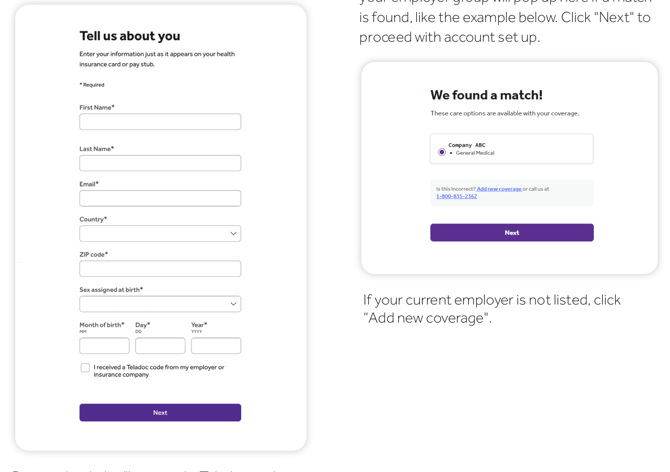
- Please note your care option through your employer group will pop up here if a match is found, like the example below.
- Click "Next" to proceed with account set up.
- Do not check the "I received a Teladoc code from my employer or insurance company".
- If your current employer is not listed, click "Add new coverage".
3️⃣ Create account
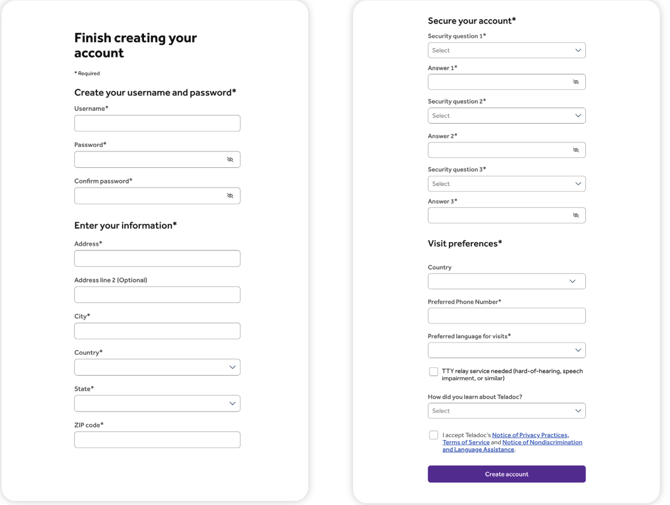
- Enter your contact information, username, password and security questions.
After Account Creation: Once your account is created, eligible dependents under 18 years of age can be added in your account settings under the primary member. Dependents older than 18 should follow the steps above to create their own account.
Before You Begin
What You'll Need
Have the following information ready before starting your account setup:
| Category | Information Needed |
|---|---|
| Personal Information | Name, date of birth, contact details |
| Employer Information | Current employer name (if coverage is through employer group) |
| Account Credentials | Desired username, secure password |
| Security Setup | Answers to security questions |
| Dependent Information | Details for any dependents under 18 (optional) |
Process Overview
START → Step 1: Confirm Benefits → Step 2: Find Your Coverage → Step 3: Create Account → COMPLETE
         (Verify eligibility)      (Match employer group)        (Enter credentials)
Getting Started
Set up your Teladoc Health account today
Access Methods
| Method | Details |
|---|---|
| Website | Visit TeladocHealth.com |
| Phone | Call 1-800-835-2362 |
| Mobile App | Download the app (available on iOS and Android) |
Quick Access: Visit TeladocHealth.com | Call 1-800-835-2362 | Download the app
Initial Steps
To begin your account setup:
- Visit the Teladoc Health website
- Click either "Get started" or "Sign up"
- Follow the step-by-step instructions below
Three-Step Account Setup Process
| Step | Title | Description |
|---|---|---|
| 1 | Confirm Benefits | Provide some information about yourself to confirm your eligibility |
| 2 | Find Your Coverage | Confirm the coverage that has been matched to you |
| 3 | Create Account | Enter your contact information, username, password and security questions |
Step-by-Step Account Setup
Step 1: Confirm Benefits
Purpose: Verify your eligibility for Teladoc Health services
Action Required:
- Provide some information about yourself to confirm your eligibility
- This personal information will be used to verify that you are eligible for Teladoc Health services
Step 2: Find Your Coverage
Purpose: Confirm and match your coverage to your account
What to Expect:
- The system will confirm the coverage that has been matched to you
- Please note: Your care option through your employer group will pop up here if a match is found (like the example shown in the original member flyer)
- Review the displayed coverage information carefully
To Proceed:
- Click "Next" to proceed with account setup once your coverage is confirmed
Important Actions:
| Scenario | Action |
|---|---|
| Coverage is correctly displayed | Click "Next" to proceed with account setup |
| Your current employer is NOT listed | Click "Add new coverage" |
Critical Instruction
⚠️ Do NOT check the box that says "I received a Teladoc code from my employer or insurance company" during the standard setup process.
Exact wording from system: "I received a Teladoc code from my employer or insurance company" - Do not check this option
Step 3: Create Account
Purpose: Set up your personal Teladoc Health account credentials
Action Required: Enter your contact information, username, password and security questions
Information Required:
| Field | Description |
|---|---|
| Contact Information | Your personal contact details (email, phone, address) |
| Username | Choose a unique username for your account |
| Password | Create a secure password |
| Security Questions | Set up security questions for account recovery |
Final Action: Complete the account creation process by submitting all required information.
Managing Dependents
Adding Dependents Under 18 Years Old
Timing: Once your account is created
Eligibility: Eligible dependents under 18 years of age can be added to the primary member's account
How to Add:
- Log into your Teladoc Health account
- Navigate to Account Settings
- Look for the dependent management section under the primary member
- Add eligible dependents (under 18 years of age) following the on-screen prompts
Note: Dependents must be under 18 years of age to be added to the primary member's account.
Dependents Older Than 18
Requirement: Dependents who are older than 18 must create their own separate accounts
Process:
- These dependents should follow the steps above to create their own account (Steps 1-3)
- They will go through the complete account setup process independently
- Each dependent older than 18 will have their own independent Teladoc Health account
Important Information
Service Availability
| Availability | Details |
|---|---|
| United States | ✓ Available |
| International | ✗ Not Available* |
*Important Note: Teladoc Health is not available internationally.
Support Contact Information
If you need assistance during the setup process:
| Contact Method | Information |
|---|---|
| Phone Support | 1-800-835-2362 |
| Website | TeladocHealth.com |
| Mobile App | Available for download on iOS and Android |
Troubleshooting Tips
Common Issues
| Issue | Solution |
|---|---|
| Employer not listed | Click "Add new coverage" during Step 2 |
| Coverage not appearing | Verify your eligibility information is correct |
| Cannot create account | Contact support at 1-800-835-2362 |
| Adding dependents | Ensure they meet age requirements (under 18 for primary account addition) |
Key Points to Remember
Critical Instructions
| ⚠️ Important | Details |
|---|---|
| Do NOT check the code box | During Step 2, do not check "I received a Teladoc code from my employer or insurance company" |
| Employer not listed? | Click "Add new coverage" if your current employer is not displayed |
| Click "Next" | After confirming your coverage in Step 2, click "Next" to proceed |
| Dependents under 18 | Add in account settings under the primary member after account creation |
| Dependents over 18 | Must follow Steps 1-3 to create their own separate account |
| International use | Not available - Teladoc Health services are US only |
Success Checklist
After completing setup, you should have:
- ✓ Confirmed your benefits (Step 1)
- ✓ Verified your coverage matches your employer group (Step 2)
- ✓ Created account with username, password, and security questions (Step 3)
- ✓ (Optional) Added eligible dependents under 18 to your account
Quick Reference Checklist
Before starting your account setup, ensure you have:
- [ ] Your personal contact information ready
- [ ] Your employer/insurance information (if applicable)
- [ ] Chosen a username and password
- [ ] Answers to security questions prepared
- [ ] Information for any eligible dependents under 18 (if applicable)
Additional Notes
- All programs and services are subject to applicable terms and conditions
- Account setup can be completed entirely online without phone assistance
- Once your account is active, you can access Teladoc Health services through the website, phone, or mobile app
- Keep your login credentials secure and confidential
Related Resources
- Teladoc Health Terms and Conditions
- How to Schedule Your First Appointment
- Understanding Your Teladoc Health Benefits
- Mobile App User Guide
Document Information:
- Type: Member Flyer - Getting Started
- Reference Number: TM-GM-10E-A24-01_4118200_K_2sided_062723_AM
- Date: June 27, 2023 (062723)
Copyright Notice: © Teladoc Health, Inc. 2 Manhattanville Rd. Ste 203, Purchase, NY 10577. All rights reserved.
Trademark Information: The marks and logos of Teladoc Health and Teladoc Health wholly owned subsidiaries are trademarks of Teladoc Health, Inc.
Terms and Conditions: All programs and services are subject to applicable terms and conditions.
Last Updated: Based on member flyer documentation dated 062723 For the most current information, always refer to TeladocHealth.com or contact customer support.